
Create a scenario
A scenario describes one situation you want to test. Two flavors are supported:
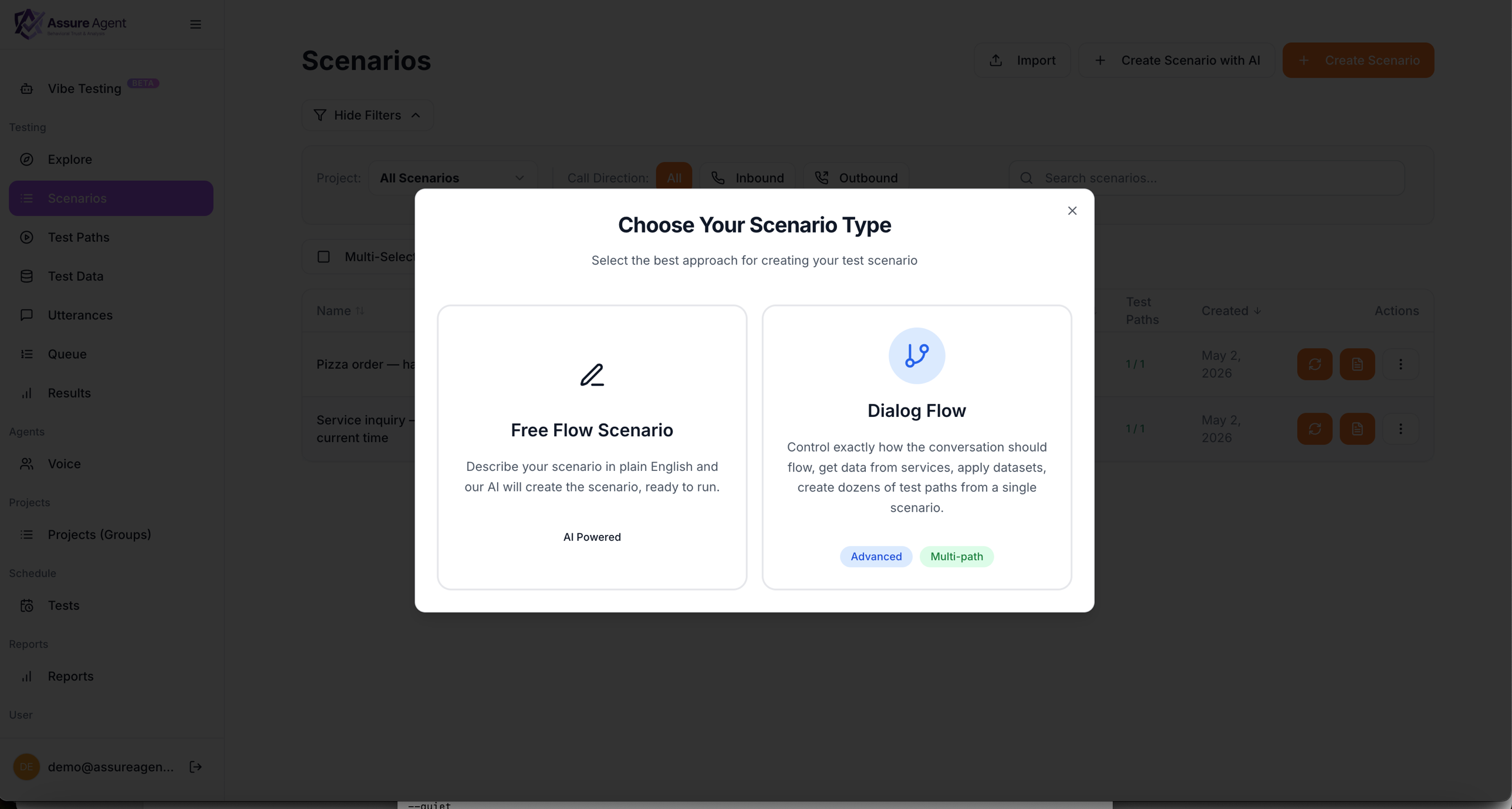
- Free Flow — describe the scenario in plain English; AssureAgent’s AI generates the caller persona at runtime. Fastest path to something runnable.
- Dialog Flow — visual canvas where you control every turn precisely. Advanced; supports service calls and dataset-driven multi-path expansion.
For your first scenario we’ll go with Free Flow.
Step 1 — Pick the scenario type
Section titled “Step 1 — Pick the scenario type”- From the left nav, click Scenarios.
- Click + Create Scenario in the top-right.
- The “Choose Your Scenario Type” modal opens. Click the Free Flow Scenario card.
Step 2 — Fill in the scenario form
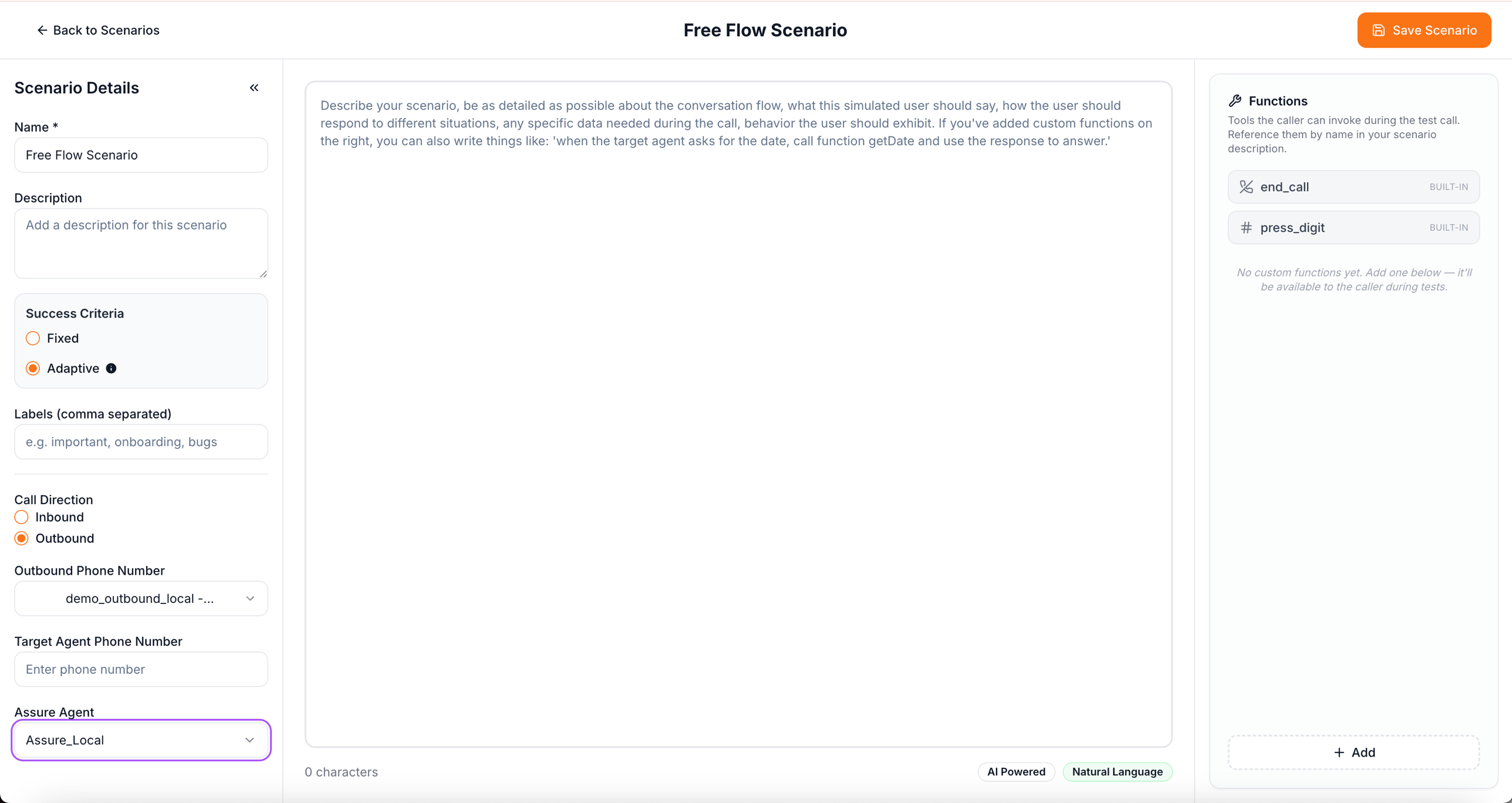
Section titled “Step 2 — Fill in the scenario form”The Free Flow Scenario page has three columns: Scenario Details on the left, the big description text area in the center, and the Functions panel on the right.
Left panel — Scenario Details
Section titled “Left panel — Scenario Details”Fill in:
- Name — short label (e.g.
billing-dispute-happy-path). - Description (optional) — one-line summary that shows up in the scenarios list. Different from the big description in the center.
- Success Criteria — pick Adaptive for now (the platform writes a sensible rubric from your scenario description). Switch to Fixed if you want to lock the rubric verbatim.
- Labels (optional) — comma-separated tags for filtering in reports.
- Call Direction — pick Outbound (AssureAgent will dial your target).
- Outbound Phone Number — the number you provisioned earlier.
- Target Agent Phone Number — the E.164 number we should dial. This is your system under test.
- Assure Agent — the agent you created in step 2.
Center — describe your scenario
Section titled “Center — describe your scenario”The big text area is where the persona’s behavior comes from. 3–6 sentences that cover who is calling, what they know, and how they react. Stage direction, not a script.
You are Alex Johnson calling about a duplicate $48.32 charge on your card.You are mildly frustrated (5/10). The duplicate is from "Brew Co" on Mar 4.Your card ending is 7710, your DOB is 1988-07-12. If the agent verifies you,ask for a refund. If they push back, ask for a supervisor. End the callpolitely once you have a refund confirmation number or a supervisor callback.The AI Powered / Natural Language toggle in the bottom-right of this area switches between two authoring modes:
- Natural Language — what you’d write a human caller doing. AssureAgent expands it into a structured persona at runtime.
- AI Powered — your description is rewritten / enriched by AI before it’s persisted, useful when you have a rough idea you want fleshed out.
For your first scenario, Natural Language is fine.
Right panel — Functions (optional, skip for first scenario)
Section titled “Right panel — Functions (optional, skip for first scenario)”The right column lists tools the simulated caller can invoke during the call:
- end_call and press_digit are built-ins, always available — you can’t edit or remove them.
- + Add lets you declare custom functions (e.g.
getDate,lookupOrder) that the caller can call against your endpoints. Custom functions guide →
For your first scenario, leave this section as-is.
Step 3 — Save
Section titled “Step 3 — Save”Click Save Scenario in the top-right. The scenario lands in your Scenarios list, ready to expand into test paths.
What just happened
Section titled “What just happened”You wrote a few sentences and picked some settings. AssureAgent will turn that into a structured caller persona at runtime — opening line, objectives, behaviors, escalation triggers, edge cases — using its built-in prompt generator. You don’t have to write any of those sections yourself.